You're choosing between a spreadsheet, a dedicated app, an ERP module, and a paper-based system. Each one makes sense — but not for every company. A two-person woodworking shop doesn't need SAP. A 200-person construction outfit can't run on a spiral notebook. The wrong choice doesn't just waste money. It wastes the six months you spend trying to make it work before you switch.
This article compares four tool tracking system types head-to-head. Same criteria, honest trade-offs, no favoritism.
What We're Comparing and Why
Not every company needs the same system. The right pick depends on your team size, tool count, budget, and how much structure you actually need. We're evaluating four options across seven concrete criteria:
- Setup cost — what you pay before day one
- Monthly cost — ongoing subscription or labor
- Setup time — from zero to functional
- Scalability — does it grow with you?
- Ease of use — will your crew actually use it?
- Checkout tracking — real-time visibility into who has what
- Reporting — can you pull data for decisions?
Every option gets an honest breakdown. If one is bad at something, we say so.
Option A: Paper-Based System (Notebook / Binder)
The original. A checkout log in the tool room: date, name, tool, signature. It's how most shops start, and some never leave it.
How it works: A physical binder sits near the tool storage area. Workers write their name and the tool they're taking. When they return it, they note the date. A supervisor checks the log periodically.
Pros:
- Zero cost. You already own a pen and a notebook.
- No training needed. Everyone knows how to write.
- No technology barriers. No logins, no passwords, no app downloads.
- Works when the internet goes down.
Cons:
- Compliance rates are terrible. In practice, maybe 1 in 10 checkouts gets logged. Workers walk past the binder because they're in a hurry.
- No search capability. Finding who had a specific drill three weeks ago means flipping through pages.
- No reporting. You can't generate utilization data from a notebook.
- Doesn't scale. With 50+ tools and multiple locations, paper falls apart completely.
- No reminders. A tool due back on Friday? Nobody knows until someone notices it's missing.
Who it's for: Solo operators or shops with fewer than 20 tools and 1-2 people. If you're in this camp, paper is fine — don't overthink it. But the moment you add a third person, the system breaks.
Option B: Spreadsheet (Excel / Google Sheets)
The most common "first upgrade" from paper. You build a spreadsheet with columns for tool name, serial number, location, assigned to, status. Maybe add some conditional formatting. Maybe create a Google Form for logging checkouts.
How it works: A shared spreadsheet (usually Google Sheets) serves as your tool database. Each tool gets a row. Workers update the "Assigned To" column when they take or return something. Some shops add QR code labels that link to the spreadsheet row.
Pros:
- Free or nearly free. Google Sheets costs nothing. Excel is part of most business subscriptions.
- Familiar interface. Most workers have used a spreadsheet before.
- Customizable. You can add columns, formulas, pivot tables — whatever you need.
- Searchable. Ctrl+F beats flipping through a notebook.
- Data export is built in. CSV, PDF, print — you already have it.
Cons:
- No change history. You don't know who edited a cell or what it said before. We go deeper into when Excel stops being enough and what comes next in a separate breakdown.
- No access control. Anyone can change anything, accidentally or intentionally.
- No notifications. The spreadsheet won't tell you a tool is overdue.
- No scanning. Workers type manually, which means they often don't bother.
- Breaks at scale. With 100+ tools and 5+ users, version conflicts and missed updates become constant.
Who it's for: Companies with 20-80 tools, 2-5 people, and someone willing to maintain it weekly. It's also a solid proof of concept if you want to test whether tracking makes a difference before investing in software.
Option C: Dedicated Tool Tracking App
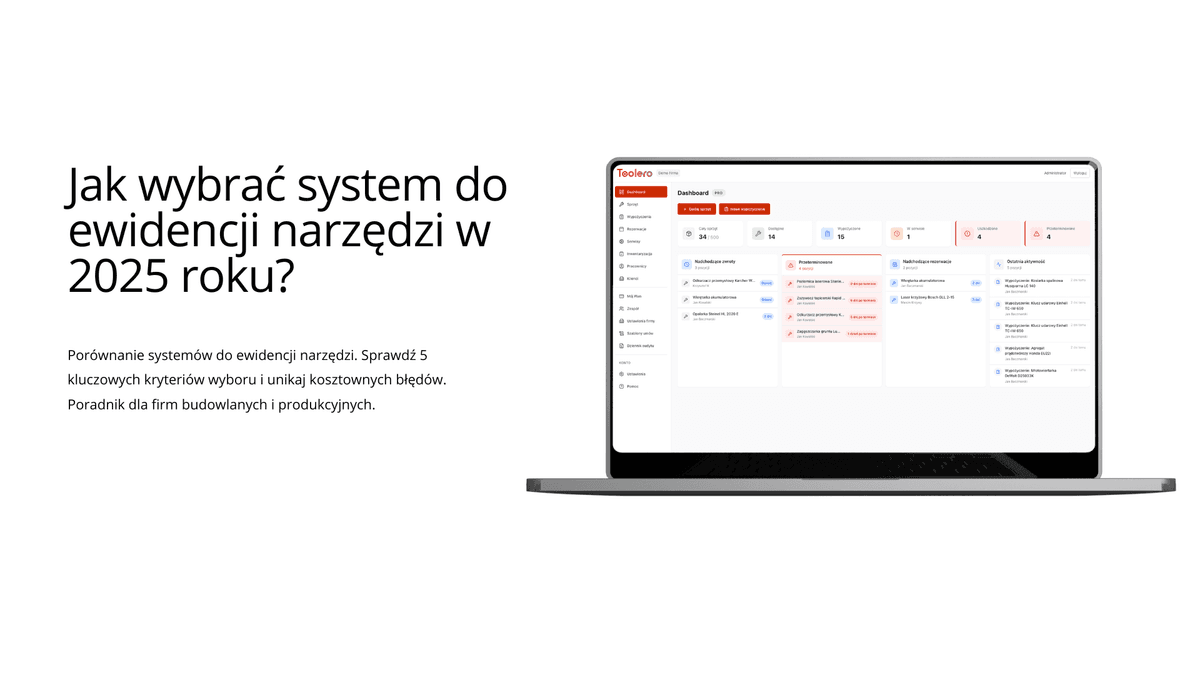
Purpose-built software for managing tool inventory. QR code scanning, checkout/return logging, history tracking, automated reminders, reporting. Examples include Toolero, ShareMyToolbox, and ToolWatch.
How it works: You add your tools to the app (or scan them in). Each tool gets a unique QR code. Workers scan the code with their phone to check out or return a tool. The system logs everything automatically — who, when, where. Supervisors see real-time dashboards and get alerts for overdue items.
Pros:
- QR scanning takes 3 seconds. No typing, no spreadsheet editing.
- Full checkout history. You know who had the tool, when, for how long.
- Automated reminders. Overdue? The system notifies you.
- Works on any phone. No special hardware. No app install required (browser-based options exist).
- Reports and dashboards. Utilization rates, cost tracking, service schedules.
- Scales cleanly. 50 tools or 5,000 — the workflow is the same.
Cons:
- Monthly cost. $15-$75/month depending on the plan and provider.
- Requires buy-in. Workers need to adopt the scanning habit. Some resist.
- Internet dependent. Most systems need a connection (some offer offline mode).
- Learning curve. Not steep, but it exists. Budget 1-2 hours for training.
- Vendor lock-in risk. Make sure you can export data in CSV format before you commit.
Can you export your data if you decide to switch systems? Some vendors make migration difficult to lock you in. A good system lets you download everything in CSV format.
Who it's for: Companies with 50+ tools, multiple users, and a need for accountability. Construction crews with equipment moving between job sites. Manufacturing plants with shift handoffs. Rental businesses that need utilization data.
Option D: ERP Module (SAP, Oracle, NetSuite)
Enterprise resource planning systems that include asset management modules. They track tools as part of a broader system covering procurement, maintenance, accounting, and HR.
How it works: Tools are registered as assets in the ERP system. Checkouts and returns are logged through the ERP interface. Data flows directly into accounting, maintenance scheduling, and procurement workflows.
Pros:
- Deep integration. Tool data connects to accounting, HR, procurement, and maintenance in one system.
- Enterprise-grade reporting. Custom reports, audit trails, compliance documentation.
- Handles complexity. Multiple locations, departments, cost centers, approval workflows.
- Existing infrastructure. If your company already uses SAP or Oracle, adding a tool module means no new vendor.
Cons:
- Expensive. Licensing alone runs $50-$200 per user per month. Implementation can cost $10,000-$100,000+.
- Slow setup. Expect 3-12 months for configuration and deployment.
- Overkill for tools. ERP systems are designed for broad asset management, not the specific workflows of tool checkout and return.
- Poor field usability. Most ERP mobile interfaces are clunky. Workers on a job site won't use them.
- Requires IT support. Configuration changes, updates, and troubleshooting all go through IT.
Who it's for: Companies with 500+ employees that already run an ERP for other functions. If you're not already on SAP or Oracle, don't start one just for tools.
Adding an ERP module for tool tracking alone is like buying a Ford F-350 to haul groceries.
Head-to-Head Comparison
| Criteria | Paper | Spreadsheet | Dedicated App | ERP Module |
|---|---|---|---|---|
| Setup cost | $0 | $0 | $0-$50 | $10,000-$100,000+ |
| Monthly cost | $0 | $0 | $15-$75 | $50-$200/user |
| Setup time | 10 minutes | 4-8 hours | 1-3 hours | 3-12 months |
| Max tools (practical) | 20-30 | 80-100 | 5,000+ | 10,000+ |
| Max users (practical) | 1-2 | 3-5 | Unlimited | Unlimited |
| QR code scanning | No | Manual (DIY) | Built-in | Varies |
| Checkout tracking | Manual log | Manual entry | Auto on scan | Auto (clunky UI) |
| Real-time visibility | No | Partial | Yes | Yes |
| Overdue reminders | No | No | Yes | Yes (configured) |
| Checkout history | Flip through pages | Limited | Full audit trail | Full audit trail |
| Reporting | None | Basic (pivot tables) | Dashboards + export | Advanced + custom |
| Mobile usability | N/A | Poor | Good to excellent | Poor to fair |
| Offline capability | Yes | Limited | Varies by provider | Usually no |
| Data export | No | Built-in | CSV/Excel | Multiple formats |
| Scalability | Very low | Low | High | Very high |
QR codes don't require specialized equipment. Any smartphone with a camera is enough for scanning. You can even print labels on a regular printer yourself.
The Verdict: Choose Based on Your Numbers
Choose Paper if you have fewer than 20 tools, work alone or with one other person, and don't need accountability records. Cost: $0. Risk: you'll outgrow it fast if you add people.
Choose a Spreadsheet if you have 20-80 tools, 2-5 people, and someone willing to maintain it. Cost: $0 plus 2-3 hours per week of someone's time. Risk: compliance drops as your team grows, and you'll hit a wall around 100 tools.
Choose a Dedicated App if you have 50+ tools, multiple users, and need real-time checkout tracking. Cost: $15-$75/month. This is the sweet spot for most construction, manufacturing, and rental businesses. Don't buy without testing — a 14-day trial with full features tells you more than any demo.
Choose an ERP Module if you already run an ERP system and have 500+ employees. Cost: significant, but marginal if the infrastructure is already in place. Don't deploy an ERP just for tools.
If you're somewhere in the overlap — say, 60 tools and growing — start with the cheaper option and set a trigger to upgrade. "When we hit 100 tools" or "when we add a third crew." Having a plan beats spending six months on the wrong system.
Want to test those criteria on a real system? Try Toolero — QR scanning, checkout history, phone access, and full data export. Free for 14 days, no credit card required.