
Control who can view, edit and manage data in your company
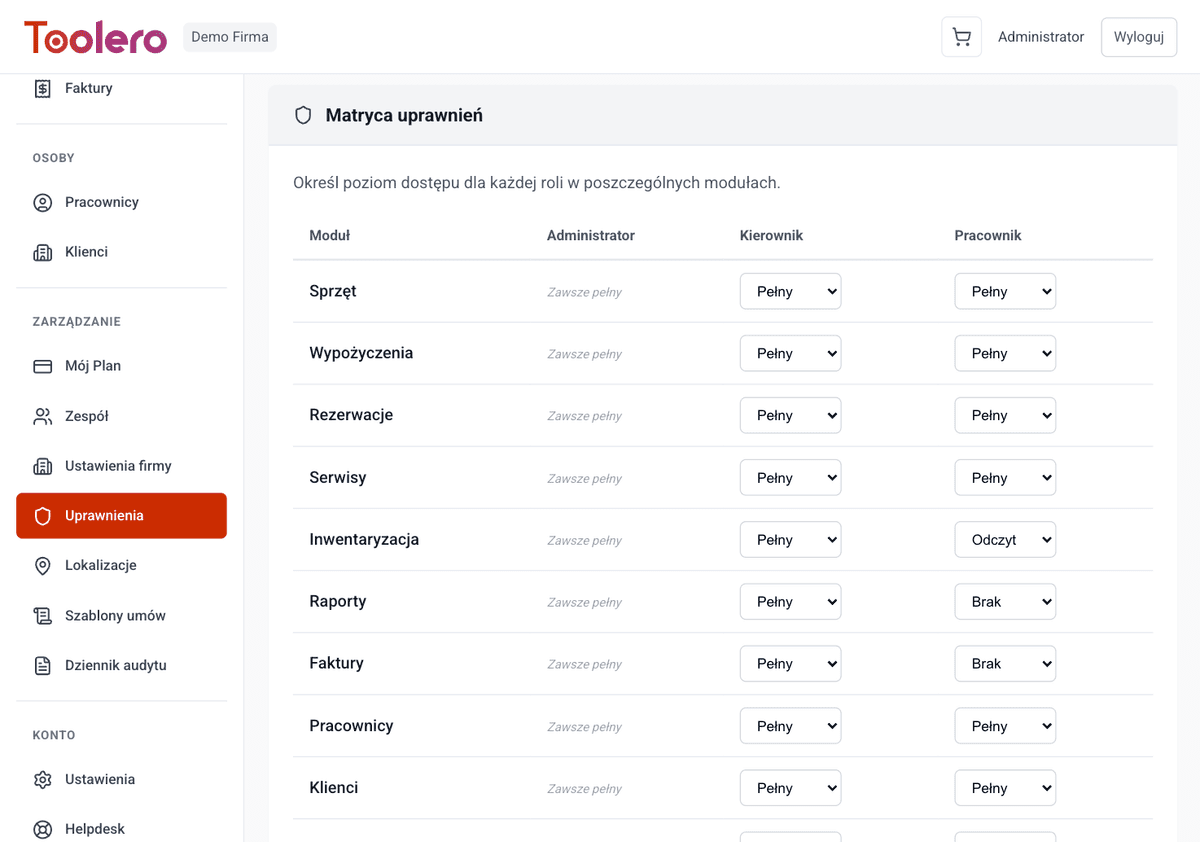
Define roles: Admin, Manager, Worker. Set access levels per module - from reports to pricing. Toggle modules on/off per plan. Admin always has full access.
7-day free trial. No credit card required.
No access control costs you security
Four most common problems of businesses without a permissions system.
Everyone has access to everything
The warehouse worker sees financial reports, and the new hire can edit the price list. Without roles, there's no control over who does what.
Sensitive data visible to everyone
Pricing, settlements and customer data accessible to every user. One mistake and confidential information ends up in the wrong hands.
Manual access management
You set who can do what verbally. Lack of formal rules leads to chaos - nobody knows what permissions they have.
Risk of unauthorized changes
Without access levels, any user can modify or delete data. One person's mistake can affect the entire company.
Full control over access
Four key capabilities of Toolero's roles and permissions system.
Three roles: Admin, Manager, Worker
Each role has a different set of permissions. Admin manages the system, Manager oversees operations, Worker handles daily tasks.
Access levels: NONE, READ, FULL
Set a granular access level for each module. A Worker can e.g. view the price list (READ), but cannot edit it.
Toggle modules on/off
Enable only the modules you need. Disabled sections disappear from the menu - a simpler interface for your team.
Admin always has full access
The Admin role is protected - it always has full access to all modules. You cannot accidentally lock out the administrator.
Roles & permissions features
Everything you need for professional access control.
- Three predefined roles: Admin, Manager, Worker
- Three access levels per module: NONE, READ, FULL
- Toggle modules on/off per company plan
- Admin always has full access (system safeguard)
- Permission matrix in settings - configure in a minute
- Permissions tied to plan - Business and above
How to configure permissions
Three simple steps to full access control.
Choose roles for your team
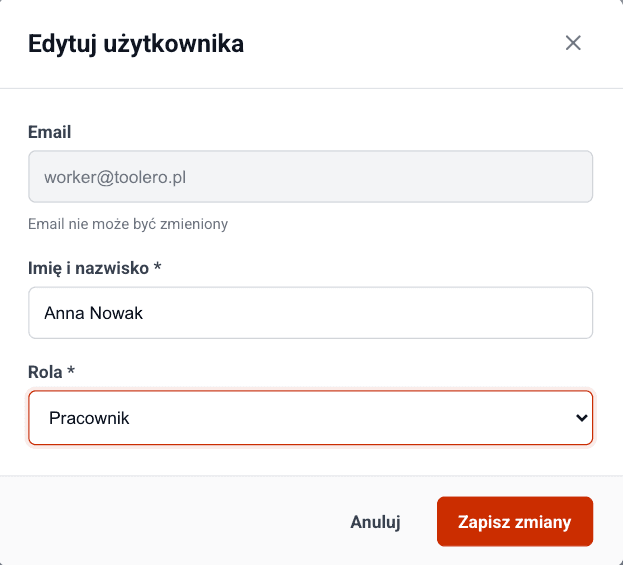
Assign each user a role: Admin, Manager or Worker. Each role has default permissions that you can customize.
Set access levels
In the permission matrix, set the access level for each role to each module: NONE, READ or FULL.
Done - the system enforces access
Users only see what they have permissions for. Unauthorized access attempts are blocked automatically.
Toolero vs no permissions system
Compare Toolero's role system with the traditional "everyone has access to everything" approach.
Frequently asked questions
Which plan includes roles and permissions?
The roles and permissions system is available from the Business plan. Pro and Enterprise plans offer additional configuration options.
What roles are available?
Toolero offers three roles: Admin (full control), Manager (operational oversight) and Worker (daily tasks). Each role has configurable permissions per module.
What do the access levels NONE, READ, FULL mean?
NONE - the user cannot see the module. READ - they can view data but not edit. FULL - full access to view, edit and delete data in the module.
Can I disable modules I don't need?
Yes. In the settings panel you can toggle individual modules on and off. Disabled modules disappear from the menu for all users. The Tools and Rentals modules are always active.
Can the admin lose access?
No. The Admin role always has full access to all modules - this is a system-level safeguard. You cannot accidentally lock out the administrator.
See also
Rental contracts
Generate contracts from templates, collect electronic signatures on device
Learn moreReports & analytics
13 report types in 5 groups. Analyze utilization, costs and equipment profitability
Learn moreFor rental companies
Equipment rental management system with online reservations
Learn moreStart controlling access in your company
No more permission chaos. Configure roles once - the system enforces access for you.
Try for free7-day free trial. No credit card required.