
Stop manually entering data and wasting hours at the keyboard
Import hundreds of tools from a CSV file in minutes. Export equipment lists, customers and rental history for reports. Migrate from Excel without losing data. CSV export available for all key data.
7-day free trial. No credit card required.
Manual data entry costs you time and nerves
Four most common problems for companies without data import and export.
Hours of manual typing
You have 200 tools in Excel and need to enter each one manually. That's days of work you could spend running your business.
Painful data migration
Switching from Excel to a new system seems impossible. No import means weeks of retyping or giving up on the change altogether.
No export for reports
You need a tool list for the insurer or a report for the accountant. Without export, you have to manually copy data.
Errors from manual entry
Typos, wrong serial numbers, duplicate entries. Every manual data entry carries a risk of errors that are hard to catch later.
Import and export under control
Four key capabilities of data import and export in Toolero.
CSV file import
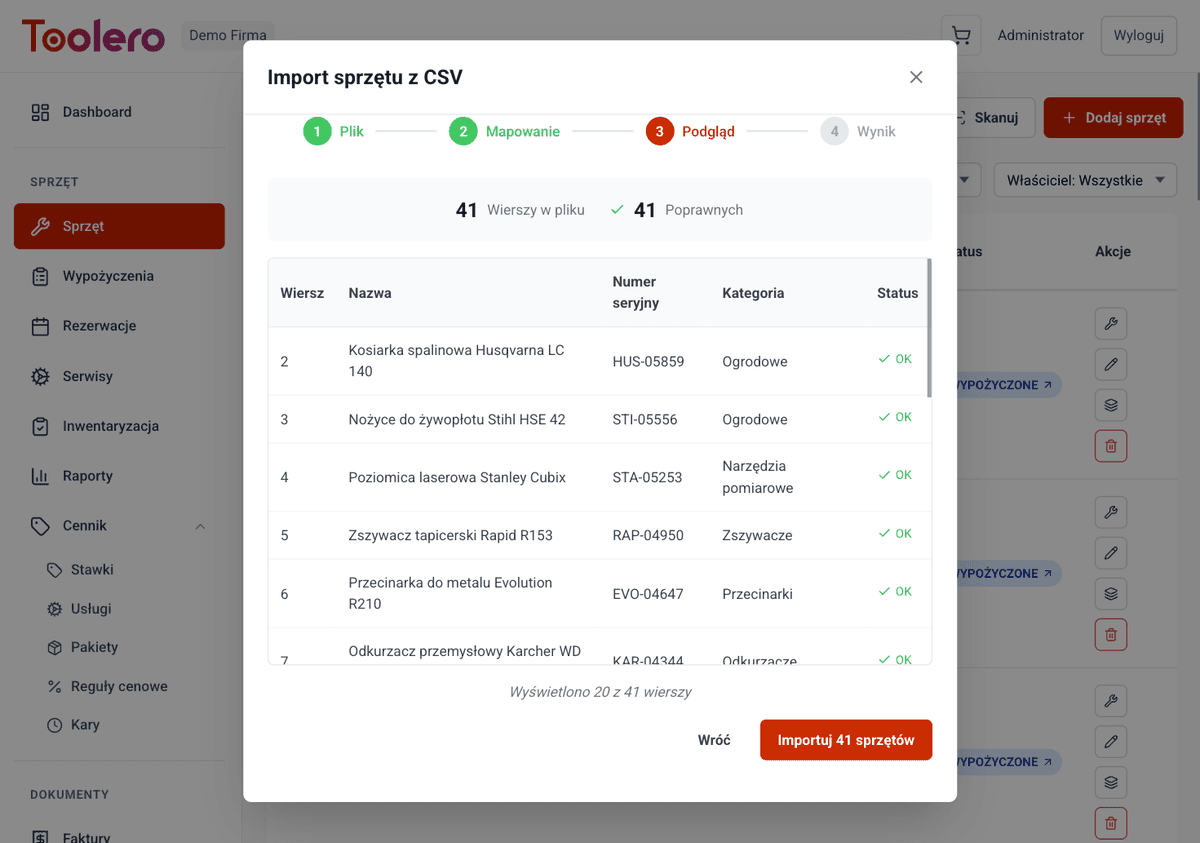
Upload a CSV file with your tools. The system recognizes columns and imports data in minutes instead of days.
Export to CSV
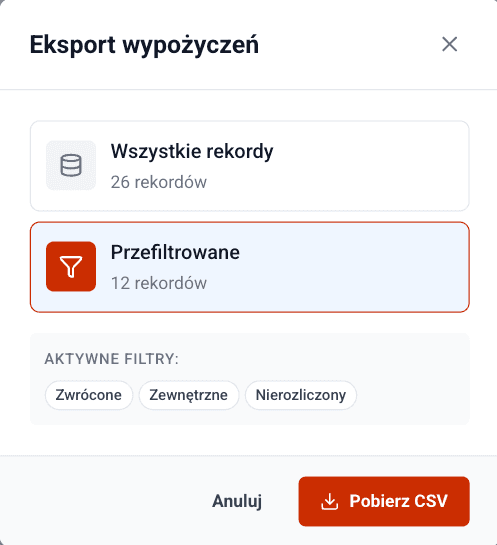
Export your tool list, customers, rentals and history to a CSV file. Ready-made data for reports, insurance and accounting.
Bulk operations
Import hundreds or thousands of records at once. No need to add tools one by one - upload the entire file at once.
Easy migration from Excel
Save your Excel spreadsheet as CSV and upload to Toolero. Column mapping lets you match data structure without changing the file.
Import & export features
Everything you need for smooth data migration and export.
- Import tools from CSV files with column mapping
- Export tool lists, customers and rentals to CSV
- Column mapping - match your file structure to the system
- Preview and validate data before importing
- Export filters - select date ranges, statuses and categories
- Export rental history with full details
How to import data
Three simple steps from CSV file to a complete database.
Prepare your CSV file
Save your Excel data as CSV or use a ready-made template. Columns: name, serial number, category, location and more.
Upload and map columns
Upload the CSV file to Toolero. The system detects columns automatically - map them to system fields. Preview shows data before import.
Done - data in the system
After confirmation, import takes seconds. Hundreds of tools are immediately available in the system with complete records.
Toolero vs manual data entry
Compare CSV import in Toolero with traditional data retyping.
Frequently asked questions
Which plan includes data import and export?
Tool import from CSV is available from the Starter plan. CSV data export (tools, rentals, customers, employees, services) is available from the Pro plan.
What data can I import?
You can import tools and equipment (name, serial number, category, location, value, rental rate). The system offers column mapping and data preview before import.
Can I import data from Excel?
Yes. Simply save your Excel spreadsheet as a CSV file (Save As → CSV). Then upload it to Toolero and map the columns. No need to change the data structure.
What if there are errors in the CSV file?
The system validates data before import and shows a preview with highlighted errors. You can fix the data in the file and re-upload, or import only the valid records.
What data can I export?
You can export tool lists, customers, rentals, rental history, settlement reports and more. Export supports filters - select date ranges, categories or statuses.
Start importing data in minutes
No more manual retyping. Upload a CSV file and have a complete database in Toolero.
Try for free7-day free trial. No credit card required.